iPhone App — WebRTC + VNC

Control Your Mac
from iPhone.

Remotely control any Mac on the same Wi-Fi with gestures, text, and voice. No cloud, no account required.
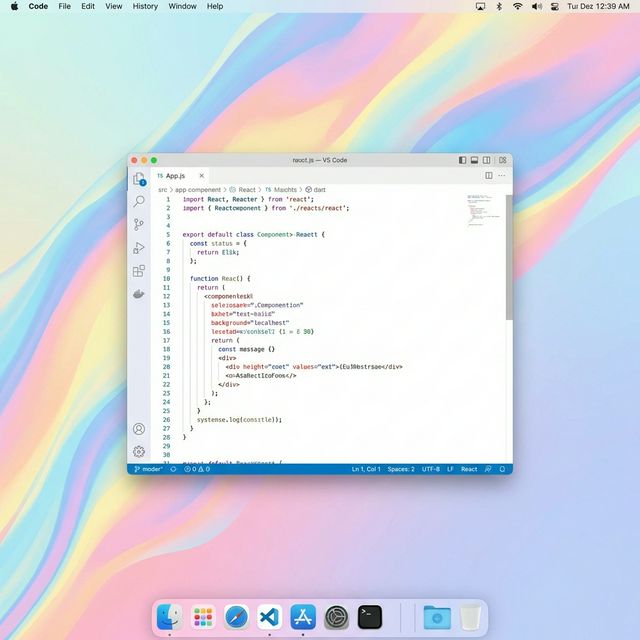
Mac desktop — RemoteVibeCoding Host running
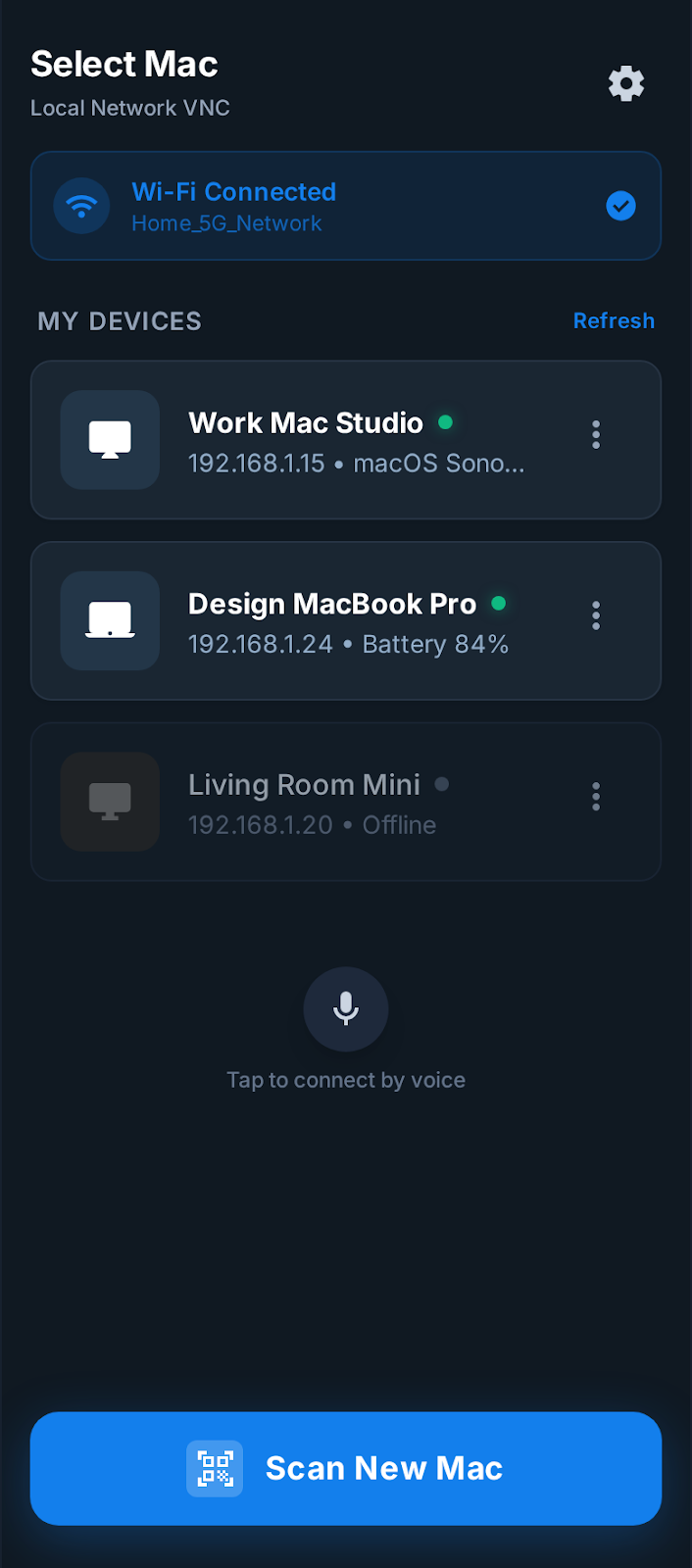
iPhone app — select a saved Mac for one-tap connection

3 Steps

Install. Scan. Control.

Mac is the host, iPhone is the controller. No cloud, no complex setup.

01
Mac Host application

Install Mac Host

Launch the host app on the Mac you want to control. Screen capture setup and QR code display happen automatically.
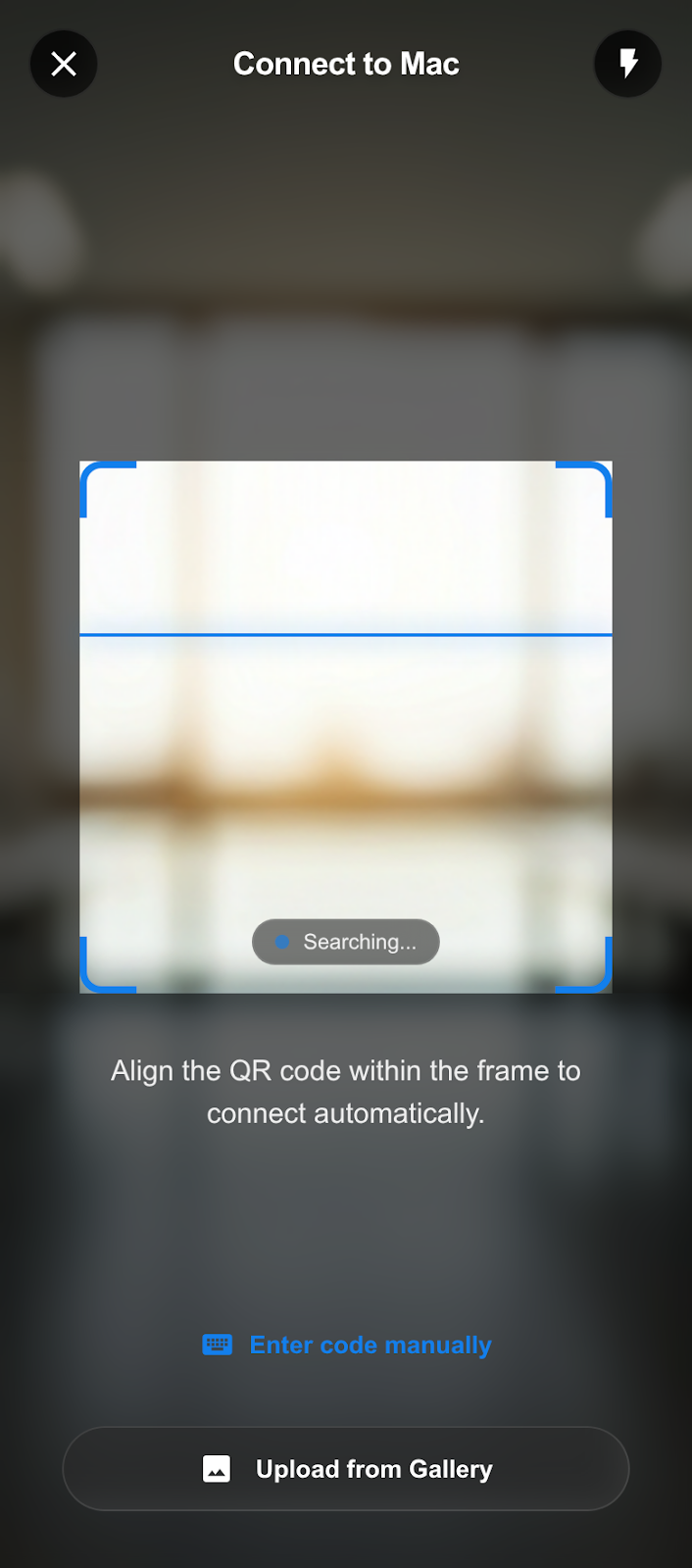
  • Download and launch on your Mac
  • Grant Screen Recording & Accessibility permissions
  • QR code appears automatically
02
iPhone QR scan

Pair with iPhone

Open the iPhone app on the same network and scan the QR code. Host address, one-time code, and certificate are fetched at once.
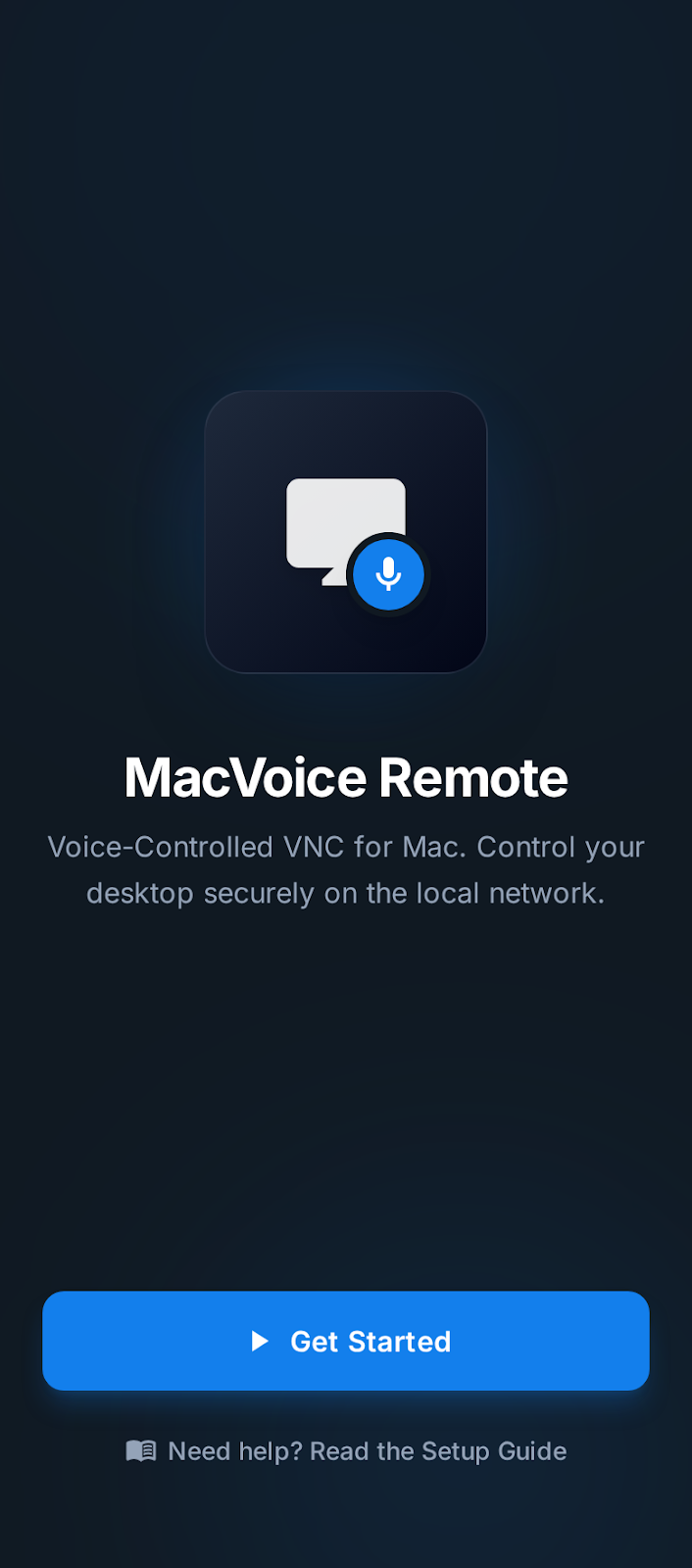
  • Both devices must be on the same network
  • Secure handshake via one-time code
  • Certificate Pinning established automatically
03
App welcome screen

Start Controlling

WebRTC live view begins streaming. Gesture control, app switching, text input, voice input — all from your iPhone.

  • Live view with recovery snapshots
  • Gestures, text, and voice input
  • One-tap reconnect from Saved Macs next time

Mac is the host. iPhone is the controller.

Mac Host Handles QR display, screen capture, and permission management.
iPhone App Scan to pair, reconnect instantly from Saved Macs. Touch-first controller.
Quick Return Saved Macs and auto-reconnect make sessions instant from the second time on.

The Difference

Fundamentally different
from generic remote desktops.

Not a desktop remote crammed onto iPhone. Built from scratch to control Mac from iPhone.

Without RemoteVibeCoding

  • Generic remote desktop UI built for mouse & keyboard
  • Network setup and port forwarding required
  • No native iPhone gesture support
  • Manual reconnection every time
  • Desktop UI squeezed onto a small screen
  • No local-only security model

With RemoteVibeCoding

  • Native iPhone touch controls, designed for fingertips
  • QR scan pairs in seconds — zero configuration
  • Tap, drag, scroll — Gesture-first
  • One-tap reconnect from Saved Macs
  • Purpose-built for the iPhone ↔ Mac workflow
  • Certificate Pinning + approval flow security

See it in Action

Not a viewer.
Built to control.

Not a passive screen viewer — a live session where your iPhone becomes a full Mac controller.
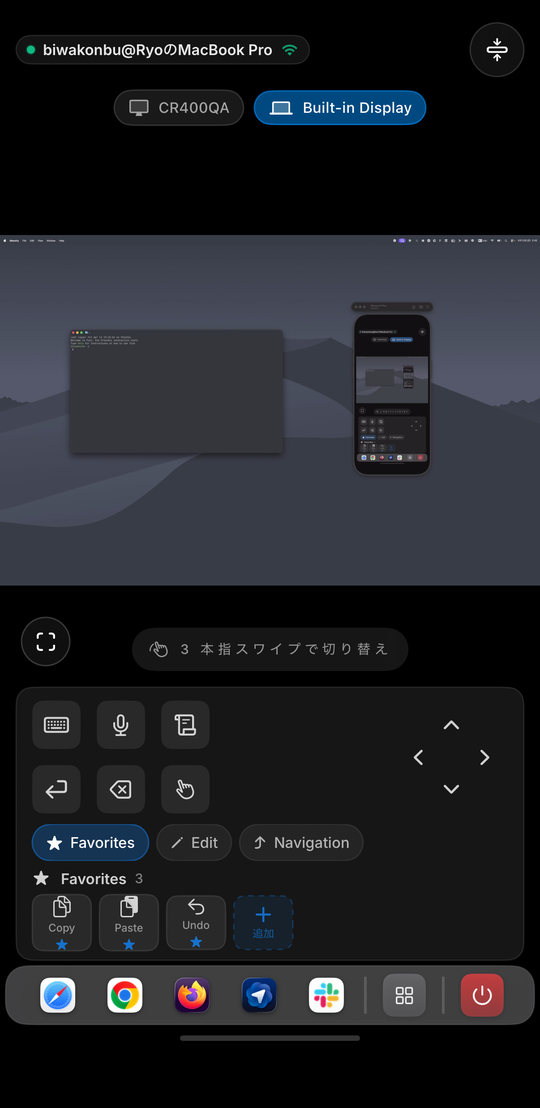
RemoteVibeCoding live session
Live Control

Not a viewer. A controller.

Tap, drag, scroll, switch apps, type text, use voice — do everything without walking to your Mac. iPhone becomes your Mac remote.

Saved Macs
Repeat Sessions

Get back to your Mac instantly.

After the first QR scan, your Mac is saved automatically. Reconnect with one tap next time.
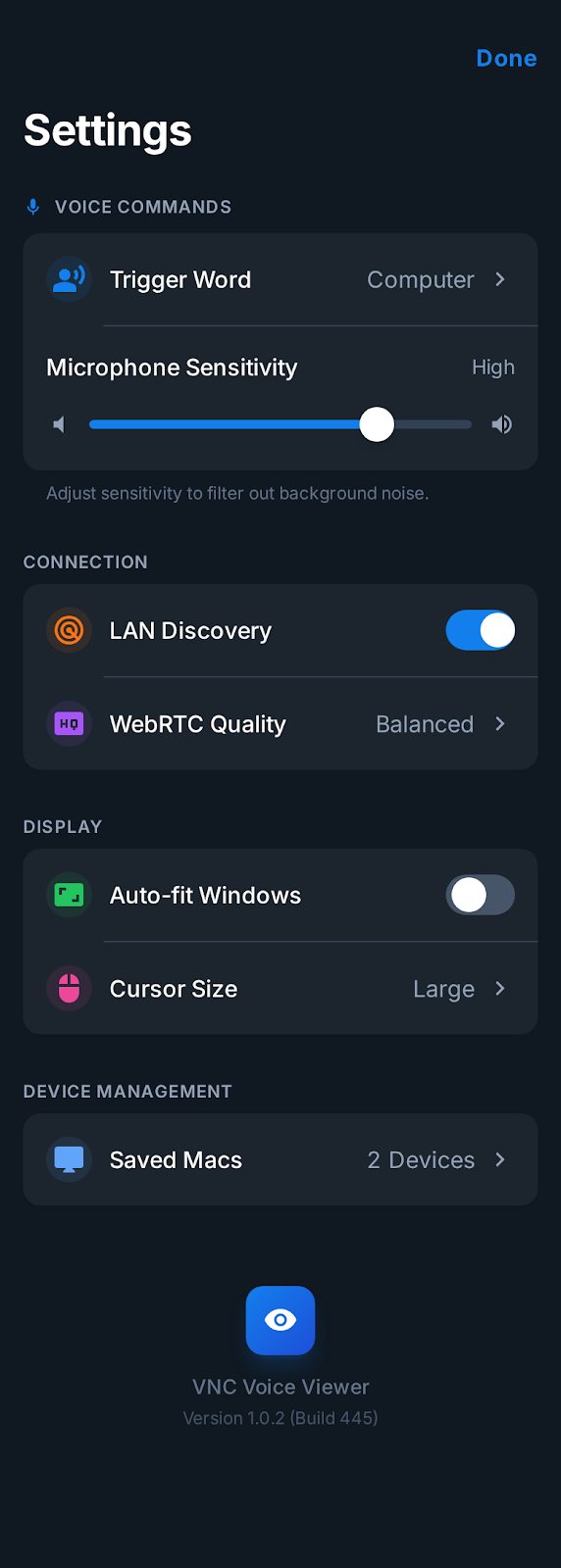
App settings
Customizable Settings

Customize your experience.

Voice command trigger words, WebRTC quality, cursor size. A settings screen that lets you fine-tune every detail.

Built for Apple

100% Native.
Zero Compromise.

Built with Swift and SwiftUI. WebRTC for streaming, VNC for control. Everything stays on your local network.

Swift & SwiftUI

Both Mac and iPhone apps built entirely in Swift. Native performance, native feel.

WebRTC

Sub-second latency real-time screen streaming on your local network. No cloud needed.

Certificate Pinning

TLS with pinned certificates. Connection verified every time iPhone connects to Mac.

Local Network Only

Same network only. No cloud, no external servers. Data never leaves your network.

VNC Protocol

Industry-standard protocol optimized for iPhone touch input and gesture-first interaction.

QR Pairing

One scan to get host address, one-time code, and certificate. Zero manual configuration.

Use Cases

Control your Mac,
your way.

Across the room or on the couch. Full Mac control from the device already in your hand.

Away from Desk

Fix it from the couch.

Open Saved Macs, check the live view, make adjustments — without going back to the room with your Mac.

Quick Actions

Switch apps and windows fast.

Control your entire Mac with iPhone-first gestures and switcher. No hunting for cursors on a small screen.

Direct Input

Type without reaching for the keyboard.

Your Mac is nearby but out of reach. Send text input or voice commands directly from your iPhone.

Security Model

Direct local connection.
Your data stays yours.

No cloud. No relay servers. Your data never leaves your network.

Mac Host QR
iPhone scanning QR
1
Open Mac Host

Launch the host app on the Mac you want to control. QR code appears automatically.

2
Scan from iPhone

Pair on the same network. QR provides host address, one-time code, and certificate.

3
Reconnect Securely

Saved Macs use pinned certificates. Connection verified before every session.

Works only on the same local network. No internet access, no cloud relay, no external servers.

Security built into
every layer.

  • QR Pairing + One-time Code Host address, verification code, and certificate pin obtained in a single scan. No manual entry.
  • HTTPS + Certificate Pinning iPhone precisely verifies the paired Mac before every session. Impersonation impossible.
  • Approval Flow High-risk commands require explicit approval on the Mac Host before execution.
  • Localhost-only AI API AI assistant API runs only on the Host Mac's localhost. Never exposed to the network.
  • Same Network Required Both devices must be on the same network. No cloud, no port forwarding.

Pricing

Simple Pricing Plans

Mac Host is free. Unlock all features with an iPhone App Pro subscription.

Weekly

$1.99 / week

50% OFF first week

  • All Pro features
  • Cancel anytime
  • Perfect for trying it out

Monthly

$4.99 / month

Standard plan

  • All Pro features
  • Flexible monthly billing
  • ~40% cheaper than weekly
Best Value

Yearly

$49.99 / year

17% OFF — Best annual deal

  • All Pro features
  • $4.17/month equivalent
  • Best for long-term use

Included in Pro Access

✓ WebRTC Live View ✓ Gesture Control ✓ Voice Commands ✓ Text Input ✓ Saved Macs (multi-Mac) ✓ Custom Shortcuts ✓ Certificate Pinning ✓ All Future Updates

Mac Host app is free. Just install it on the Mac you want to control.

Get Started

Control your Mac from iPhone.

Install Mac Host → Scan with iPhone App → Done.

Start with Mac Host. Then pair from iPhone.

1 Download Mac Host

Install on the Mac you want to control.

2 Get iPhone App

Use as your controller.

3 Scan QR Code

Same network — done.

Compatibility

  • macOS Host — install on the Mac to control
  • iPhone Controller — iOS 17+ recommended
  • Both devices on the same network
  • macOS permissions: Screen Recording, Accessibility
  • No account registration needed

FAQ

Do I need both apps?

Yes. Mac Host runs on the Mac side, iPhone App is the controller. Install Mac Host first, then pair from iPhone.

Can I use it over the internet?

No. It only works on the same local network. No cloud relay or internet access.

What happens after initial setup?

After the first QR scan, your Mac is saved automatically. Reconnect with one tap — no need to scan again.

How is it secured?

QR pairing includes a one-time code and certificate pin. All connections use HTTPS + Certificate Pinning. Sensitive commands require explicit Mac approval.

What macOS permissions are needed?

Screen Recording (for screen capture streaming) and Accessibility (to receive remote input from iPhone).